---
title: Kullanıcı Listesi
title_en: User List
order: 10
product: back-office
section_tr: Kullanıcı Yönetimi
section_en: User Management
cardImage: /img/bo/user-management/4-1-1/x7nbphctczq70dbn-image-0bd7c7e2.webp
---
# User List
The User List page is used to create, update, and control Back Office users.
## Add User Video Walkthrough
## Screen Layout
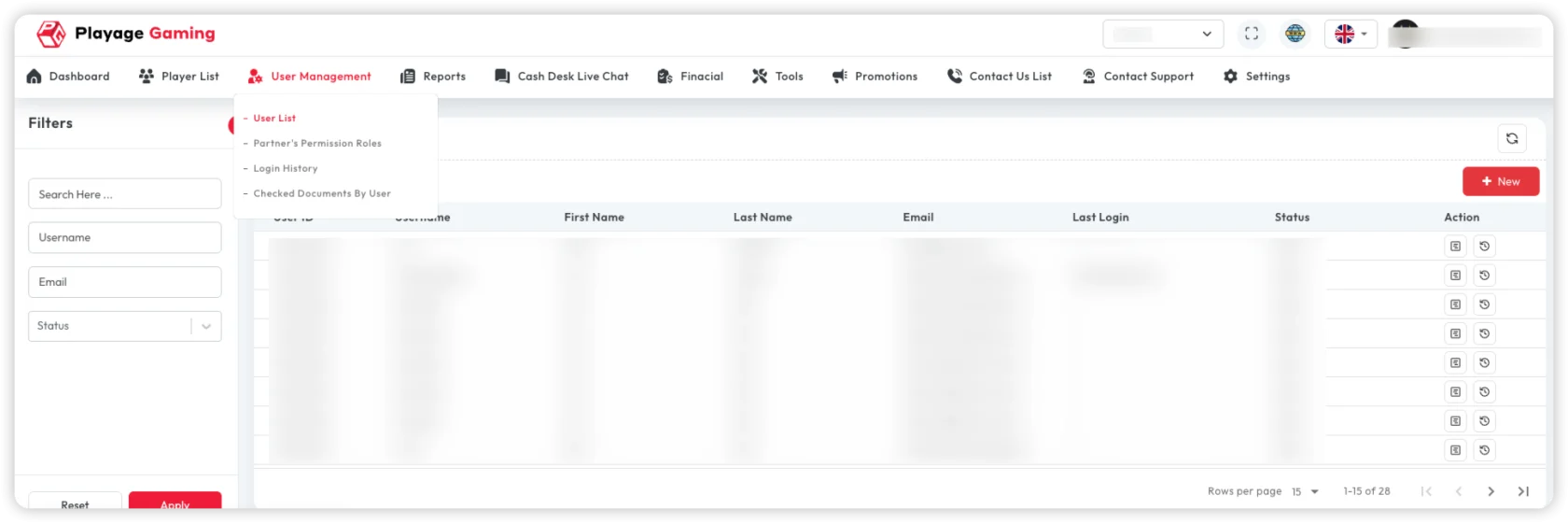
Main areas:
- Search box (name, email, username)
- Status filters
- User table
- Row actions (edit/deactivate/details)
- **Add New** button
## Add New User (2-Step Flow)
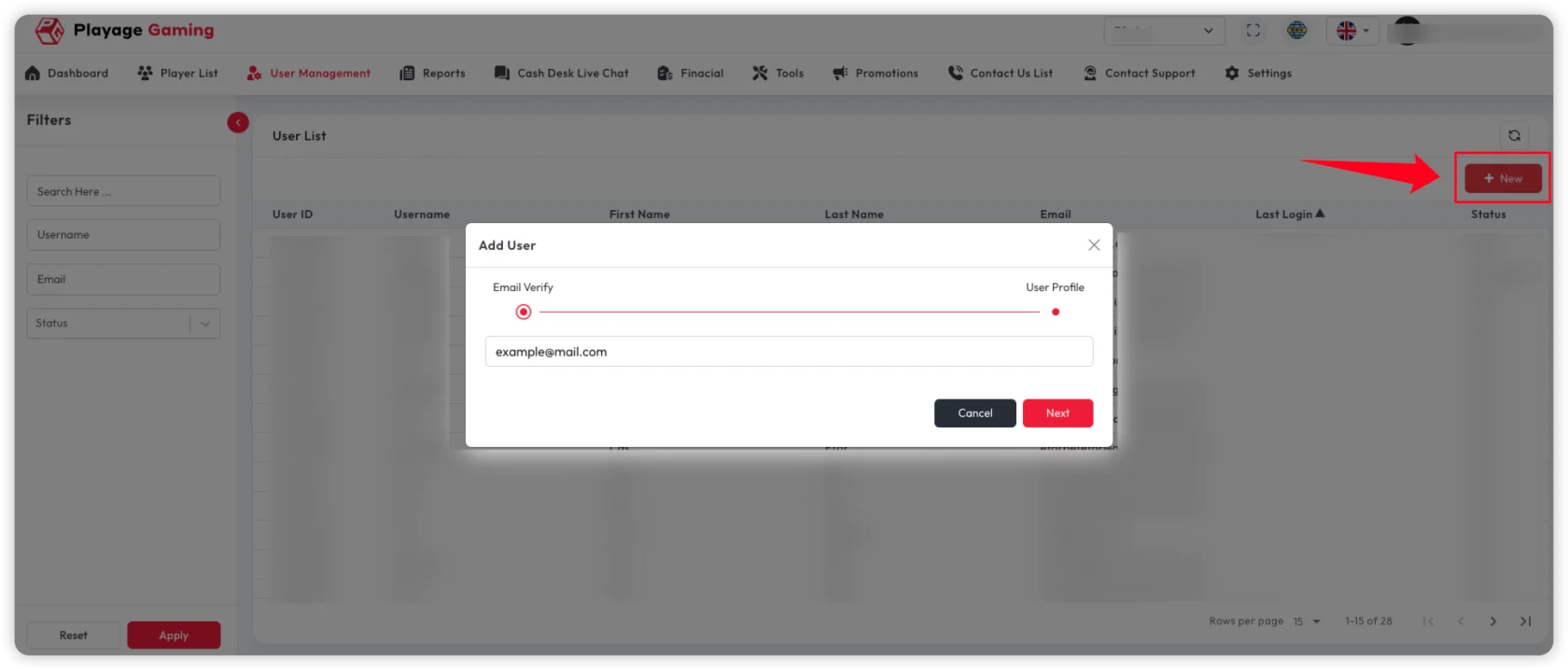
### Step 1: Email Verify
1. Click **Add New**.
2. In `Email Verify`, enter the user email.
3. Click **Next**.
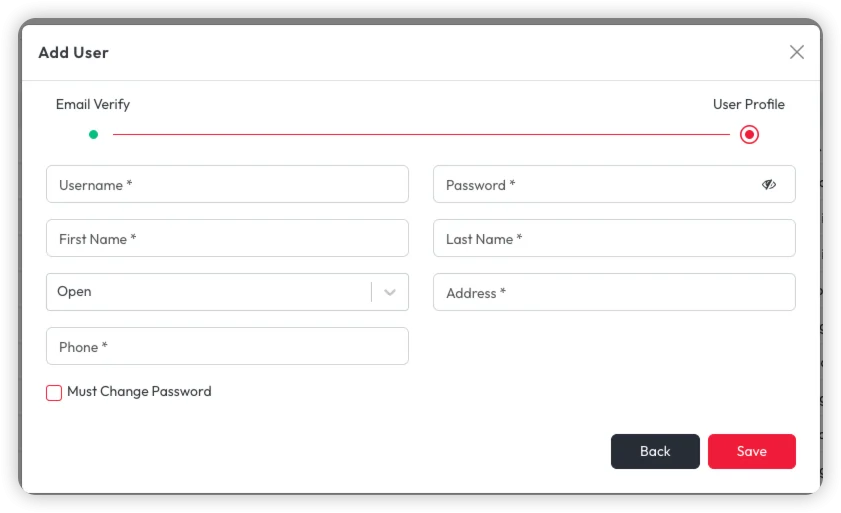
### Step 2: User Profile
1. Fill `Username`.
2. Fill `Password`.
3. Fill `First Name` and `Last Name`.
4. Select account status (default shown as `Open`).
5. Fill `Address`.
6. Fill `Phone`.
7. Optional: enable `Must Change Password`.
8. Click **Save**.
## Required vs Optional Fields
Based on the video form (`*` marker):
### Required fields
- `Email Verify` email (step 1)
- `Username`
- `Password`
- `First Name`
- `Last Name`
- `Address`
- `Phone`
### Optional fields
- Account status change from default (if policy allows default `Open`)
- `Must Change Password` checkbox
## Field Behavior Notes
- `Email Verify` is the onboarding gate before profile entry.
- `Must Change Password` can be toggled during creation.
- `Back` returns to previous step without saving user.
- `Save` remains unavailable/blocked until required fields are valid.
## Manage Existing User (After Creation)
1. Open user details from row actions in the list.
2. Use the edit icon in `User Info` for profile updates.
3. Use `Permissions` tab for role and module access.
4. Use `Password` card edit icon for password reset/change.
5. Use `Notes` tab to add internal comments.
6. Use `Logins` tab to audit recent access.
### Profile Modification
Update these fields from `User Info` edit mode:
- `Status` (`Open`/blocked state as per policy)
- `First Name` and `Last Name`
- `Email`
- `Address`
- `Phone`
- `Must Change Password`
- `Email Authentication`
- `Two Factor Authentication`
Save with the check icon, or cancel with the close icon.
### Access Role and Permissions
From the `Permissions` tab:
1. Click edit mode.
2. Search module/permission by keyword.
3. Move items between available and granted lists using arrows.
4. Expand module groups and select required actions.
5. Save changes.
Use `Add Role` if a new reusable role is required.
### Password Change / Reset
From the password section:
1. Click edit icon.
2. Enter `Password`.
3. Enter `Confirm Password`.
4. Save.
Enable `Must Change Password` in profile when first-login reset is required.
### Add Notes
From `Notes` tab:
1. Click `New Note`.
2. Enter comment in the note text area.
3. Click `Save`.
Saved notes appear in the notes table with date, username, and comment.
### Login Audit
Open `Logins` tab to verify:
- login date/time
- source/session information (if enabled)
- recent access pattern for troubleshooting
## Troubleshooting
- **Cannot move to profile step**: Verify email format in `Email Verify`.
- **Save button does not proceed**: Check required profile fields (`Username`, `Password`, `First Name`, `Last Name`, `Address`, `Phone`).
- **User created but cannot sign in**: Validate account status and password policy.
- **User not visible in table**: Clear filters and search by exact username/email.
- **Save button does not create user**: Check required fields and duplicate username.
- **User cannot access expected module**: Recheck role assignment and permission toggles.
- **Password update fails**: Ensure `Password` and `Confirm Password` match.
- **Permission update not applied**: Re-login the target user and verify saved state.
- **Notes not visible**: Confirm note was saved and filter/sort is not hiding newest row.
## Best Practice
- Apply least-privilege role design.
- Keep 2FA enabled for high-privilege users.
- Review inactive users regularly.