---
title: Projeler Genel Bakış
title_en: Projects Overview
description_tr: BAS proje listesinden proje kayıtlarını filtreleyin, oluşturun, domain configuration, domain taşıma ve arşiv işlemlerini yönetin.
description_en: Manage project records from the BAS project list, including filtering, creation, domain configuration, migration, and archive-related actions.
order: 10
product: bas
section_tr: Projects
section_en: Projects
owner: BAS Operations Team
lastReviewed: 2026-03-30
productVersion: v1
status: live
cardImage: /img/bas/bas-projects-interface.webp
---
# Projects Overview
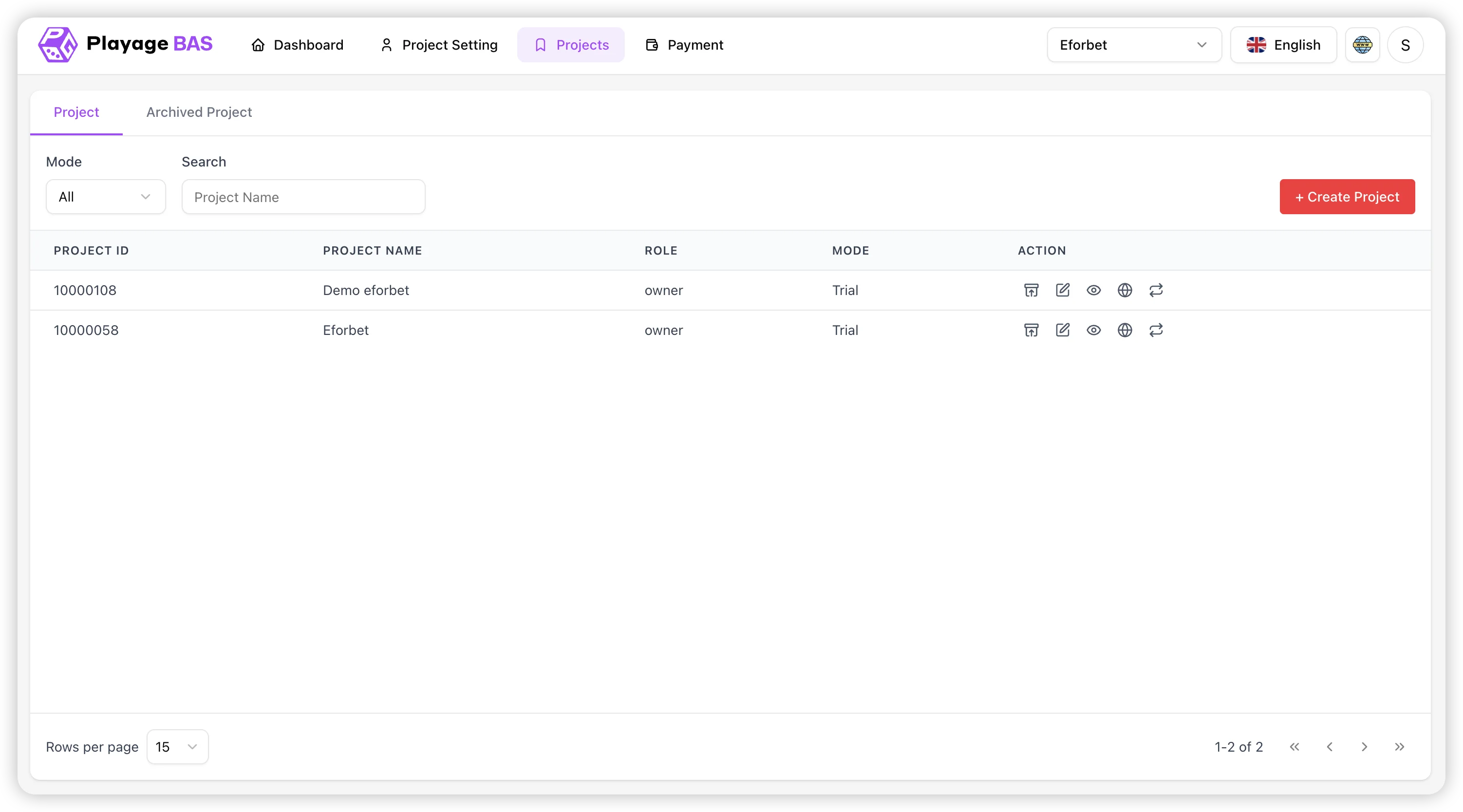
The Projects page is the main list view for managing available project records. It gives you search, mode filtering, row actions, archive navigation, project creation, and domain-related actions for each project row.
## What You Manage Here
- Active project records under `Project`
- Archived project records under `Archived Project`
- Search by project name
- Filter by mode
- Create a new project
- Open project-specific actions from the action column
- Configure a project domain from the action column
## Interface Overview
Main visible sections:
- Tabs: `Project`, `Archived Project`
- Filters row: `Mode`, `Search`
- Primary action: `+ Create Project`
- Data table: project id, name, role, mode, actions
- Footer controls: rows per page and pagination
- Top-right controls: project selector, language selector, platform menu icon, profile badge
## Column Meanings
| Column | Description |
|---|---|
| **PROJECT ID** | Unique numeric project id |
| **PROJECT NAME** | Display name of the project |
| **ROLE** | User role on that project, such as `owner` |
| **MODE** | Environment / operating mode, such as `Trial` |
| **ACTION** | Icon-based actions for management operations |
## Step-by-Step: Find a Project
1. Open `Projects` from the left sidebar.
2. Stay on the `Project` tab for active records.
3. Use the `Mode` dropdown if you want to narrow the environment list.
4. Type part of the project name in `Search`.
5. Review the filtered result row.
6. Confirm the correct `PROJECT ID`, `PROJECT NAME`, and `MODE` before taking any action.
7. Use row actions only after you verify the intended project line.
## Action Icons
From the screenshot, the action column exposes these workflows:
| Action | Use |
|---|---|
| **Archive** | Move the project to archived records |
| **Edit** | Open project settings |
| **View** | Open or preview project output |
| **Domain Configuration** | Open the domain connection and DNS verification flow |
| **Refresh** | Trigger a data refresh / sync action |
`Migrate Domain` is covered later in this guide from the dedicated migration workflow video, even though this screenshot mainly shows the core row actions.
## Create a New Project
This flow covers both project creation and the first domain setup for the new project.
## Video Walkthrough
## Create Project Flow
From the video, the current flow works like this:
- Start `Create Project` from BAS
- Fill `Project Name`, `Country`, and `Main Language`
- Select an `Engine Type` template card
- Use `Get Started` to finish the project setup
- Return to the project list and confirm the new row appears
- Open `Domain Configuration` for the new project
- Add the first custom domain with a fresh, unused domain name
- Copy the BAS-generated `Host` and IP values
- Create the DNS `A` record in your DNS provider
- Use `Check` to confirm the first domain is connected
## Step-by-Step: Create a New Project
1. Open `Projects` or use `Create Project` from the BAS dashboard quick links.
2. Click `+ Create Project`.
3. In `General Information`, enter `Project Name`.
4. Select `Country`.
5. Select `Main Language`.
6. Review the `Engine Type` cards.
7. Click `Select` on the target template.
8. Click `Get Started` to finish project creation.
9. Return to the project list.
10. Verify the new project row appears with its new project id and name.
## Project Creation Field Rules
- `Project Name` is required.
- `Country` is required.
- `Main Language` is required.
- `Engine Type` must be selected before `Get Started`.
- Template cards support `View` and `Select`.
## First Domain Setup After Creation
After the project is created, the first custom domain should be configured from the new project row.
1. Find the newly created project in `Projects`.
2. Click the `Domain Configuration` action icon for that row.
3. Click `Connect Domain`.
4. Enter a brand-new domain that has not been used before.
5. Do not use a domain that BAS reports as already in use.
6. Use a full valid domain name, not a short label like `demo` only.
7. Click `Connect`.
8. Copy the BAS `Host` and `Data` values.
9. In your DNS provider or DNS management panel, create an `A` record.
10. Set `Host` or `Name` to the BAS host value.
11. Set `Value`, `Points to`, or `Data` to the BAS IP address.
12. Save the DNS record.
13. Return to BAS and click `Check`.
14. Confirm the first domain becomes `Connected`.
## Step-by-Step: Configure a Domain
This action is used when you want to connect a custom domain to the selected project from the `Projects` tab.
## Video Walkthrough
## Domain Configuration Flow
From the video, the current flow works like this:
- Open the domain action from the project row
- Review already connected domains
- Click `Connect Domain`
- Enter a valid, unused domain name
- Move to the DNS instruction step
- Copy the `Host` and IP values shown by BAS
- Create the matching `A` record in your domain provider or DNS management panel
- Return to BAS and click `Check`
- Confirm the domain changes from `Pending` to `Connected`
## Domain Configuration Steps
1. Open `Projects`.
2. Find the correct project row.
3. Confirm the project name and `MODE`.
4. Click the `Domain Configuration` action icon.
5. In the modal, review existing connected domains if any.
6. Click `Connect Domain`.
7. Enter the target domain, such as `demo2.eforbet.com`.
8. Use a fresh domain that has not already been used in BAS.
9. Avoid invalid input such as a trailing dot at the end of the domain or a short label like `demo` only.
10. If BAS shows `Domain already in use`, choose a different unused domain.
11. Click `Connect`.
12. On the next step, note the BAS-generated values in `Host`, `Record`, and `Data`.
13. Copy the IP from `Data`.
14. Open your domain provider or DNS management site.
15. Create a new DNS record with type `A`.
16. Set `Host` or `Name` to the BAS `Host` value, such as `demo2`.
17. Set `Value`, `Points to`, or `Data` to the BAS IP address, such as `150.107.188.33`.
18. Save the DNS record.
19. Return to BAS and click `Check`.
20. Confirm the status becomes `Connected`.
## Domain Configuration DNS Fields
| Field | Description |
|---|---|
| **Status** | Current BAS validation result, such as `Pending` or `Connected` |
| **Host** | Host label you must use in DNS, such as `demo` |
| **Record** | Required record type, shown as `A` |
| **Data** | IP address the domain must point to |
| **Check** | Re-validates whether BAS can see the expected DNS record |
## Domain Status Meanings
- `Pending` means BAS does not yet see the expected DNS record.
- `Connected` means the DNS record matches and the domain is linked successfully.
- `Domain already in use` means the entered domain is already assigned elsewhere and cannot be reused for this setup.
- If the status does not change, review the DNS provider entry and allow time for propagation before checking again.
## Migrate a Domain
Use this action only when you are certain about the source and target domains.
Before migration, make sure the target `New Domain` has already been added from the `Domain Configuration` flow above. If the destination domain is not connected first, it should not be used for migration.
## Video Walkthrough
## Migration Prerequisite
Complete this first before using `Migrate Domain`:
1. Open `Domain Configuration` from the same project row.
2. Add and connect the destination domain you want to migrate to.
3. Verify that the new domain is visible and connected.
4. Return to the project row only after the target domain is ready.
## Migrate Domain Flow
From the video, the current BAS migration flow works like this:
- Open the `Migrate Domain` action from the project row
- Choose the currently active source domain in `Old Domain`
- Choose the already-added target domain in `New Domain`
- Review both dropdown values carefully
- Click `Submit` to apply the migration
## Step-by-Step: Migrate a Domain
1. Locate the correct project row in `Projects`.
2. Confirm the project name and `MODE`.
3. Make sure the destination domain has already been added from `Domain Configuration`.
4. Click the `Migrate Domain` action icon.
5. In the modal, open the `Old Domain` dropdown.
6. Select the current source domain you want to migrate from.
7. Open the `New Domain` dropdown.
8. Select the target domain you want to migrate to.
9. Re-check both selected values carefully.
10. Click `Submit` to apply the migration.
11. Use `Cancel` if either domain is incorrect.
## Migrate Domain Modal Fields
| Field | Description |
|---|---|
| **Old Domain** | Current connected source domain to migrate from |
| **New Domain** | Target connected domain that was added earlier from Domain Configuration |
| **Submit** | Confirms migration |
| **Cancel** | Closes modal without changes |
## Migration Validation Notes
- `Old Domain` should be the domain currently carrying the active setup.
- `New Domain` should already exist in the project's connected domain list before migration starts.
- If the target domain is missing, go back to `Domain Configuration` and add it first.
- Use migration only when both domains are already known and you are certain about the direction.
- If the wrong pair is selected, close the modal or use `Cancel` before submitting.
## Archived Project Workflow
Use `Archived Project` when you need to review records that are no longer in the active tab.
Typical usage:
1. Open the `Archived Project` tab.
2. Search or filter the archived list.
3. Review the project before performing any restoration or cleanup workflow supported by the system.
## Pagination and List Controls
- `Rows per page` changes the visible table size.
- Bottom-right controls move between pages.
- On small result sets, the page indicator may show `1-1 of 1` or similar.
## Safe Operating Checklist
1. Search and filter first before using any row action.
2. Validate project id and mode before edit or migration.
3. Use domain configuration only after copying the exact BAS `Host` and `Data` values.
4. Add and connect the target domain in `Domain Configuration` before using `Migrate Domain`.
5. Use domain migration only after confirming both domains.
6. Create new projects with the correct template from the beginning.
7. Review archived records separately instead of assuming active and archived data are mixed.