
Dashboard
The Dashboard is your main overview screen after login. It gives you a real-time summary of platform performance and pending operational items.
Purpose
- High-level KPI tracking
- Daily operational health check
- Quick navigation to detail modules
Dashboard Overview
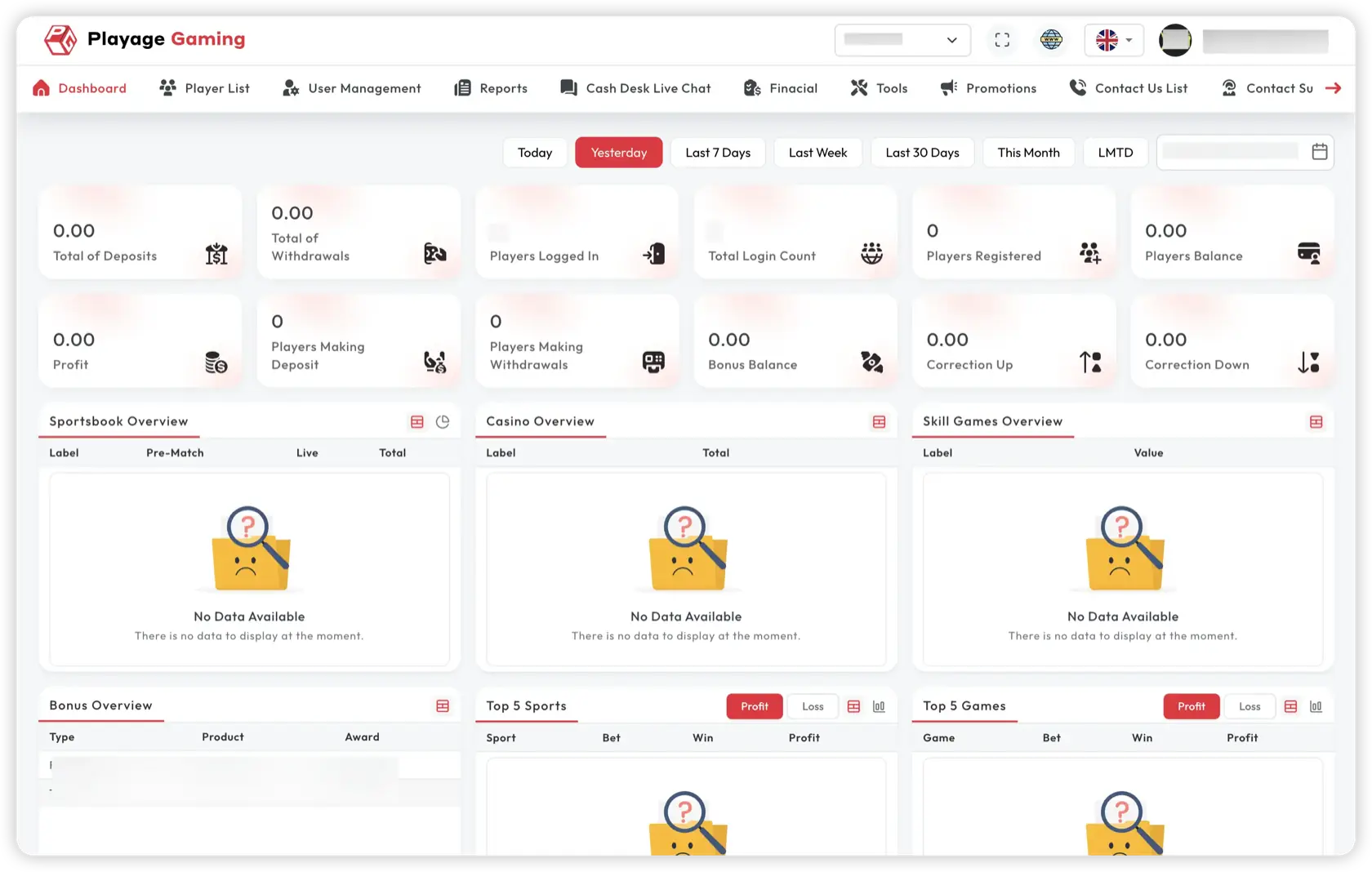
Top Navigation
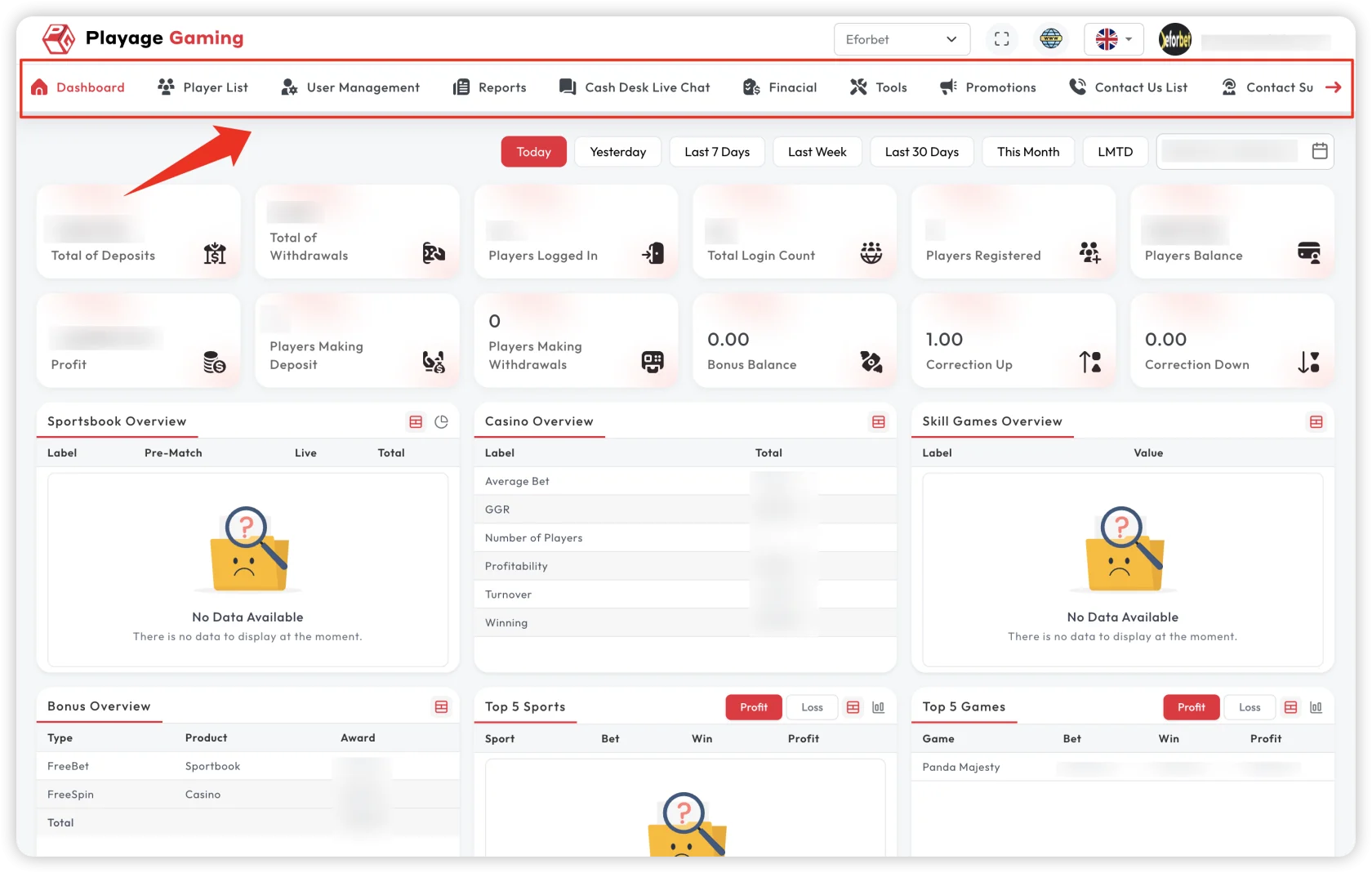
- Use top tabs to navigate between main modules.
- Open sub-pages from dropdown menus.
- Return to dashboard with Logo/Home button.
Date Filters
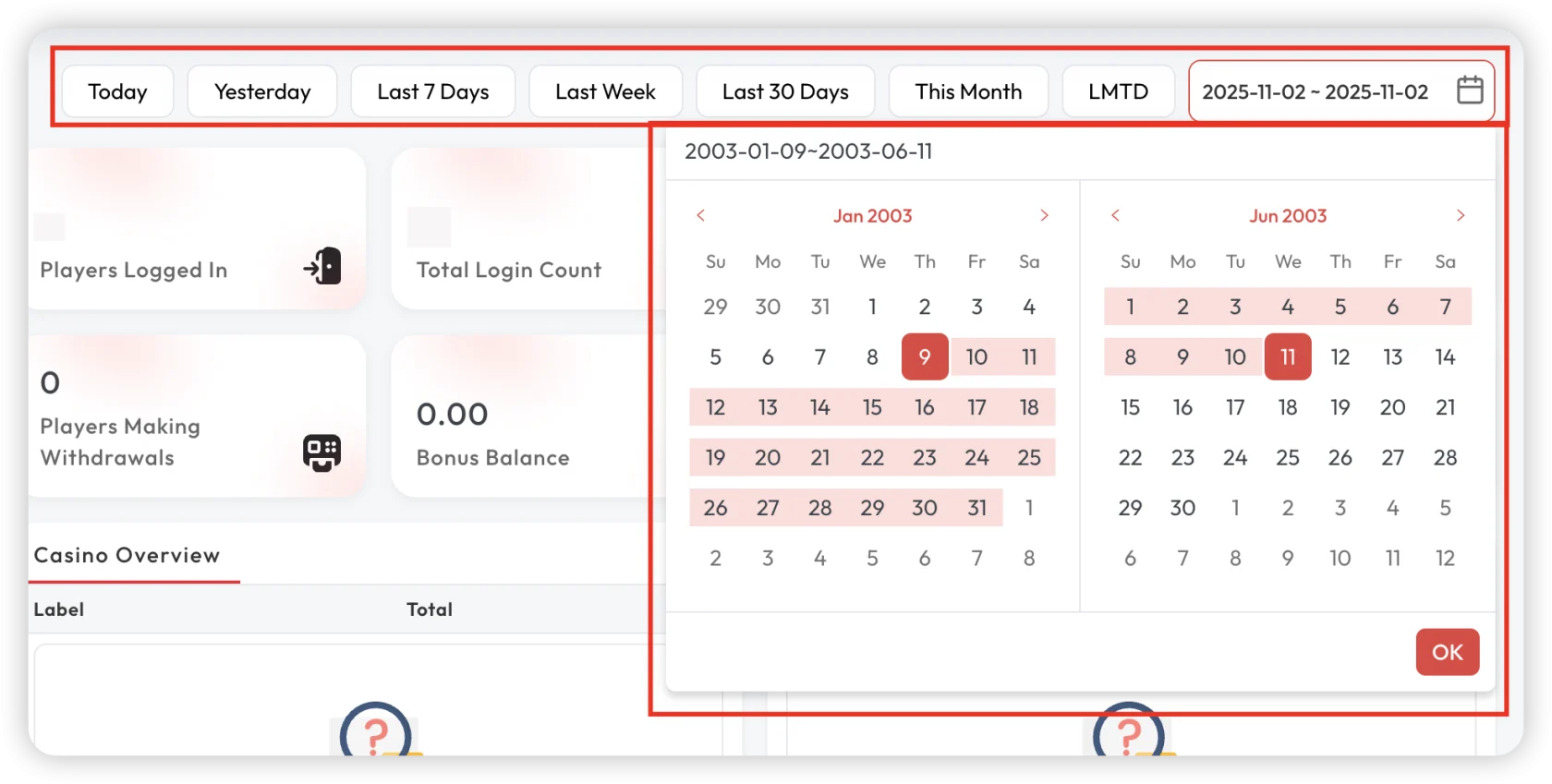
- Use the date picker to change the reporting period (today, last 7 days, custom range).
- Use quick presets for routine checks.
- Select custom date range for settlement and audit.
- Reset filters before comparing across sessions.
KPI Cards
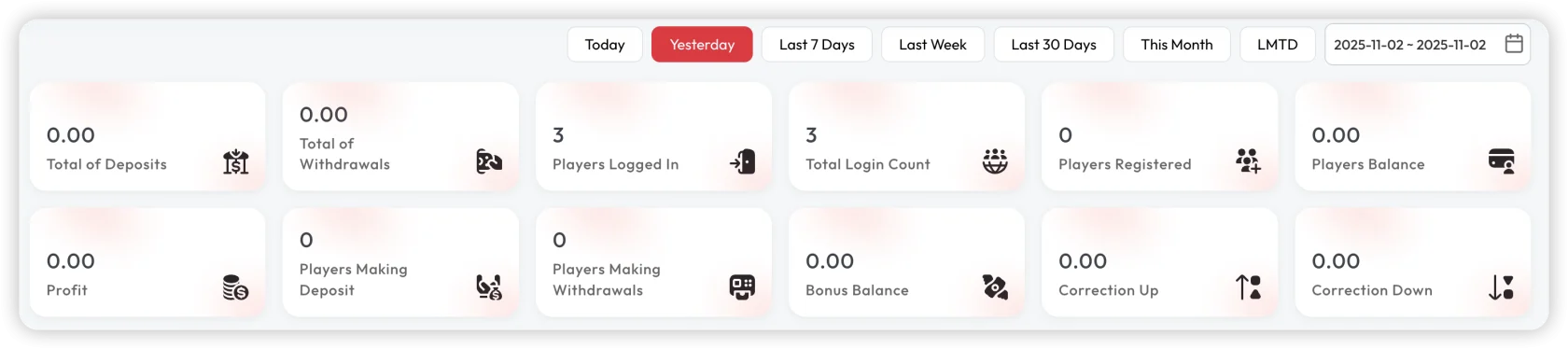
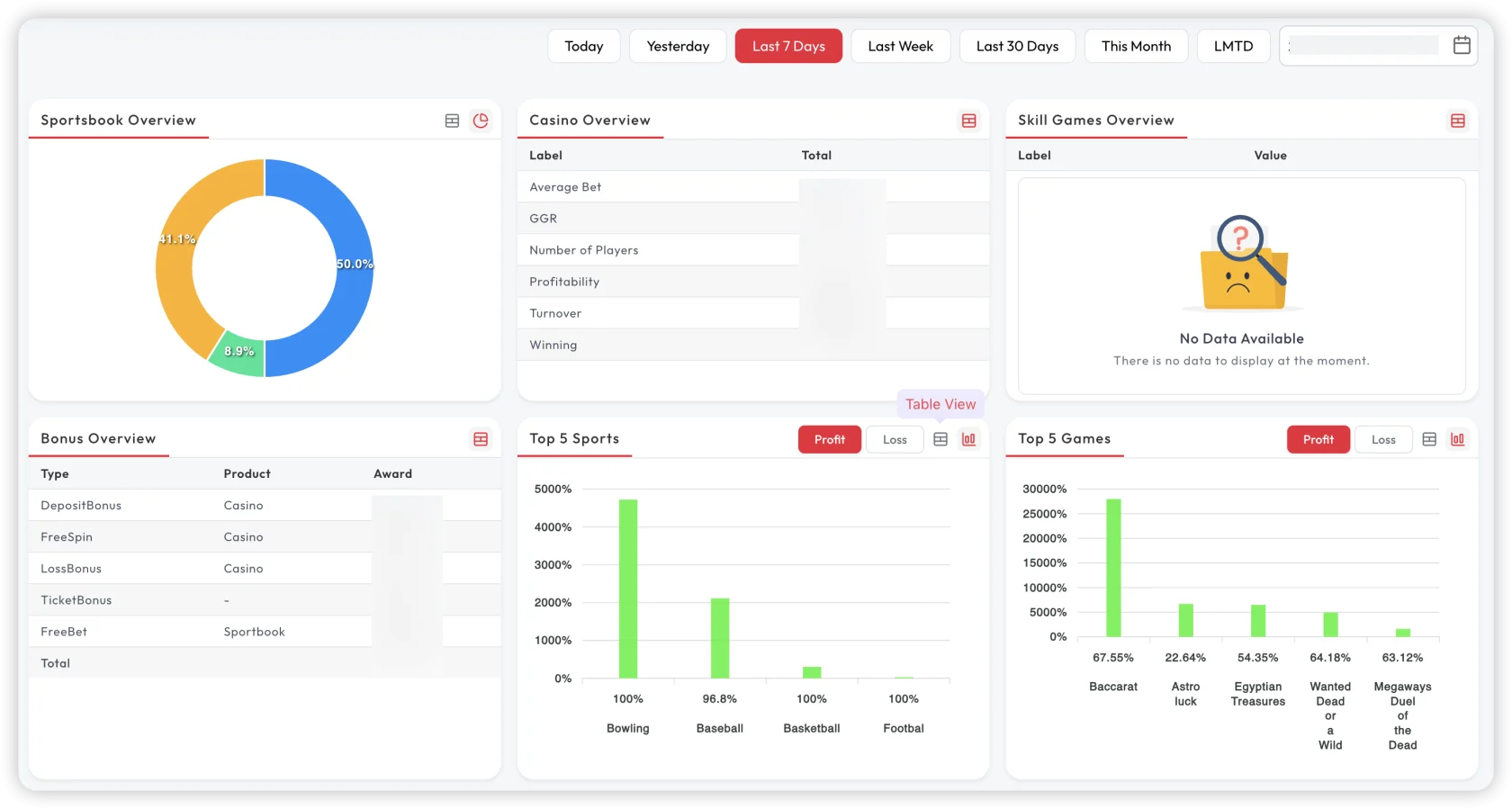
The Dashboard is divided into key metric areas:
- Active Players — current online players and session count
- Bet Volume — total bet amount and win/loss margin for the selected period
- Pending Requests — outstanding deposit and withdrawal requests requiring action
- Recent Transactions — live feed of financial activity
- System Alerts — any active maintenance notices or critical events
Track:
- Deposit/withdrawal data
- Active users and traffic
- Profit/balance indicators
- Bonus impact
How to Use
- Log in — the Dashboard loads automatically.
- Review pending request counts — if non-zero, navigate to Financial to process them.
- Check bet volume trends — if unusual, cross-check in Reporting and Analytics.
- Monitor system alerts — if maintenance is active, communicate to relevant teams.
Perform a quick dashboard validation at shift start before taking operational action.
Troubleshooting
- Widget not updated: Reapply filter and refresh page.
- Report discrepancy: Check date range and timezone alignment.
- Module not visible: Verify role permissions and log in again.
Access and Permissions
Data visible on the Dashboard depends on your role permissions. If a widget shows no data, confirm that your role has the corresponding view_dashBoard_* permission assigned in User Management → Role and Permission.
Usage Note
The Dashboard is read-only — no actions are performed here. Use it as your daily start point, then navigate to the relevant section for operational work.
| Need to... | Go to |
|---|---|
| Process deposit/withdrawal requests | Financial |
| Investigate report anomalies | Reporting and Analytics |
| Manage player issues | Player List |
| Check system health | Settings → System Maintenance |