
Player Management and Analytics
This screen is primarily the player list and player creation page. It is used to search players, review list data, export results, open quick player details, and create a new player from the same workspace.
This page does not document the full Edit Player flow. Editing belongs to the player detail area after the player record is opened.
Access and Action Rules
- Opening the page requires
view_players. - Some actions are permission-dependent.
- Export and status change actions depend on higher player-management permissions.
- Sensitive values such as some personal fields can appear masked for users without the required visibility permission.
Add Player Video Walkthrough
What You See on This Page
The page is split into three practical areas:
- Left filter sidebar for registration date, username, player ID, region, login dates, contact fields, balance range, verification flags, status, AML/KYC-related filters, and other search inputs.
- Main player table for player records, sorting, column customization, and row actions.
- Top actions for export, column chooser, and opening the New player modal.
Important Data-Loading Behavior
- The player table does not load automatically just because the page is opened.
- The list is fetched after you apply filters.
- If the table looks empty on first open, start with Registration Date or another filter and apply it.
- After creating a new player, the page automatically refreshes the list with today's registration date so the new record is easier to verify.
Add Player Workflow
- Click New on the Player List page.
- Complete the required identity, login, contact, and account fields.
- Select Region first if country-related defaults are needed.
- Set the account status as
OpenorBlock. - Submit the form.
- After success, the modal closes and the list refreshes against today's registration date.
- Find the player in the table and confirm the new record appears correctly.
What This Page Covers vs Does Not Cover
- Covered here: player search, filter usage, player list review, export, quick detail opening, and Add Player creation flow.
- Not covered here: full player profile editing, deeper account maintenance, or detail-page update actions.
Add Player Fields
Required Fields
UsernamePasswordFirst NameLast NameGenderEmailMobileBirth DateRegionCurrencyDocument ID
Optional Fields
Middle NameAddressZip CodeCityLanguagePhoneAccountIs ResidentSubscribed To Email
Field Rules You Should Follow
Username: letters and numbers only,3-30characters.Password: required,8-30characters, spaces are not allowed.First Name: letters only,2-15characters.Middle Name: letters only,2-20characters if used.Last Name: letters only,2-15characters.Email: valid email format is required.Mobile: numeric only,8-15digits.Phone: optional, but if entered it must be numeric and8-15digits.Zip Code: optional numeric field,4-8digits.City: optional text field,3-50characters.Birth Date: required and cannot be a future date.Document ID: required, letters and numbers only, exactly 11 characters.
Fixed and Auto-Filled Behavior
Accountdefaults toOpen.- When you select
Region, the form also sets the internalcountry_codeand region label automatically. Currencyis prefilled from the admin default currency when available.Is ResidentandSubscribed To Emailare optional checkboxes and can be set during creation.
Account Status Behavior
Opencreates the player as active.Blockcreates the player in blocked state.- The selected value is converted into the actual status flag when the form is submitted.
Player List Review
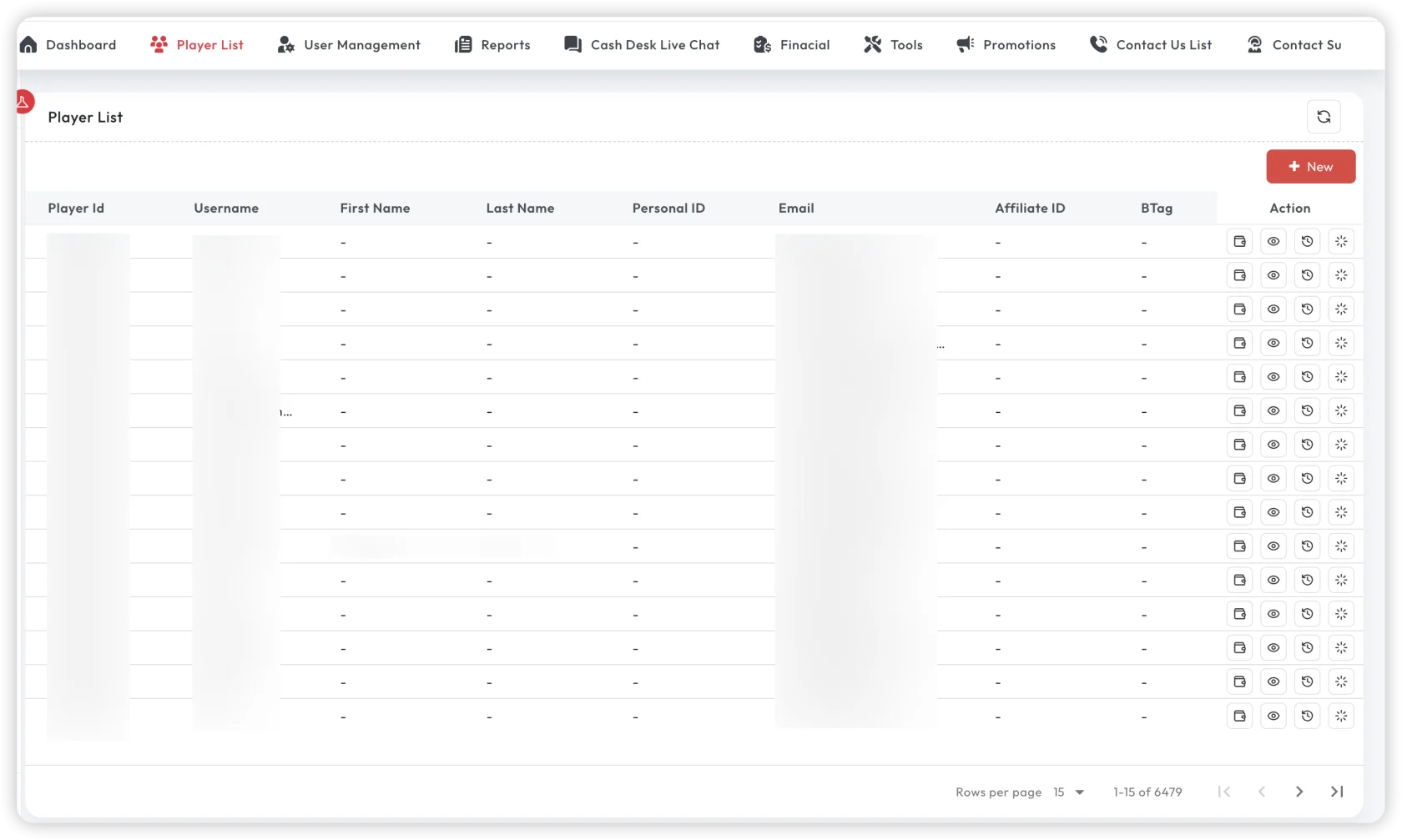
The table is not just a static grid. It supports:
- server-side sorting
- pagination
- column chooser
- export queue
- row click to open quick player details
- row actions such as full detail view, history, and status change where permission allows
Typical columns include:
- Player ID
- Username
- First Name
- Last Name
- External ID
- Status
- Address
- Balance
- Register Date
Filters That Matter Most
Use the filter sidebar when you need to narrow the list before loading or exporting data. Common filters include:
- Registration Date
- Username
- Player ID
- Region
- Last Login Date
- First Name / Middle Name / Last Name
- Gender
- Email / Mobile / Phone
- Birth Date
- Currency
- External ID
- First Deposit Date
- Zip Code / City
- Verified / Self Excluded / Email Subscribed
- Status
- AML Status
- Wrong Login Attempts
- Balance and profitability ranges
Quick Review Flow for Operations Team
- Apply date and identity filters first.
- Load the table.
- Check the player's core data in the row.
- Click the row to open the quick detail sidebar.
- Use detail/history actions if deeper review is required.
- Export only after filters are finalized.
Troubleshooting
- The table is empty on first open: this is usually expected until filters are applied.
- The new player is not visible after save: check today's registration date filter and search by username.
- Document ID error appears: confirm the value is exactly 11 alphanumeric characters.
- Mobile or phone fails validation: remove symbols and keep only digits.
- Email is hidden in the list: the logged-in user may not have the permission required to view sensitive values.
- Status cannot be changed from the table: the logged-in user likely has list access but not player-management permission.
Best Practice
- Apply filters before loading large datasets.
- Use registration date plus username for the fastest verification after player creation.
- Treat the list page as the operational control point, then move into detail view only when a deeper review is needed.