
Two-Factor Authentication
Use this page to configure and validate 2FA for admin sign-in security.
Interface Reference
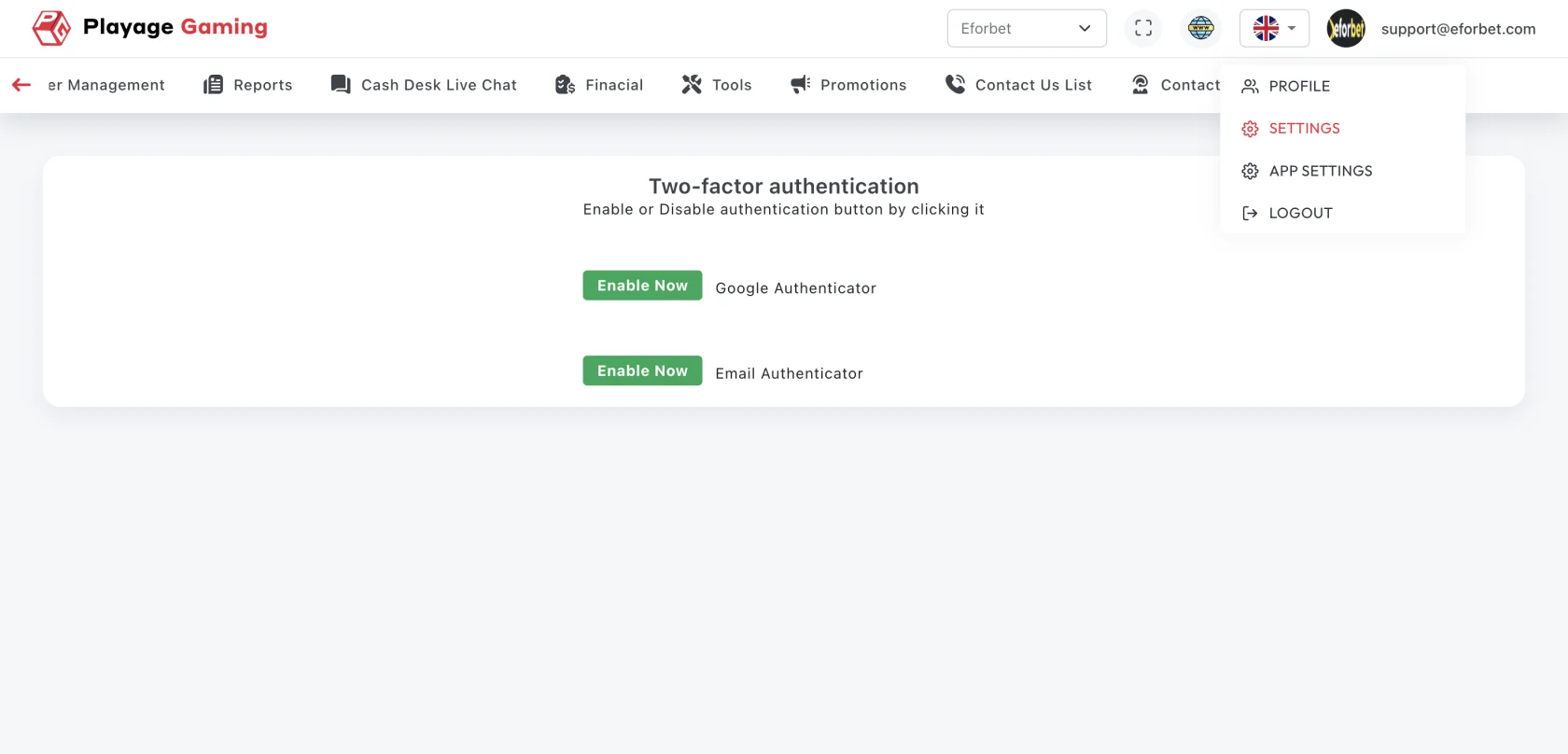
Purpose
- Protect admin access beyond password-only login.
- Reduce account takeover risk.
- Enforce compliance for privileged users.
Enable/Update Flow
- Open Admin Settings > Two-Factor Authentication.
- Choose preferred method (authenticator app, OTP channel, if available).
- Complete setup verification code.
- Save and confirm 2FA status is active.
- Test one fresh login.
Recovery and Safety Controls
- Store backup/recovery codes securely.
- Keep device time synchronized for OTP validity.
- Rotate device binding if mobile device changes.
Validation Checklist
- 2FA prompt appears at next login.
- Invalid OTP attempts are blocked.
- Backup/recovery path works for authorized user.
Troubleshooting
- OTP rejected repeatedly: sync device time and request new code.
- No 2FA prompt: verify enforcement policy for current role.
- Device lost: trigger recovery flow via authorized admin process.
Best Practice
Require 2FA for all admin roles and audit exceptions monthly.