
Communication Overview
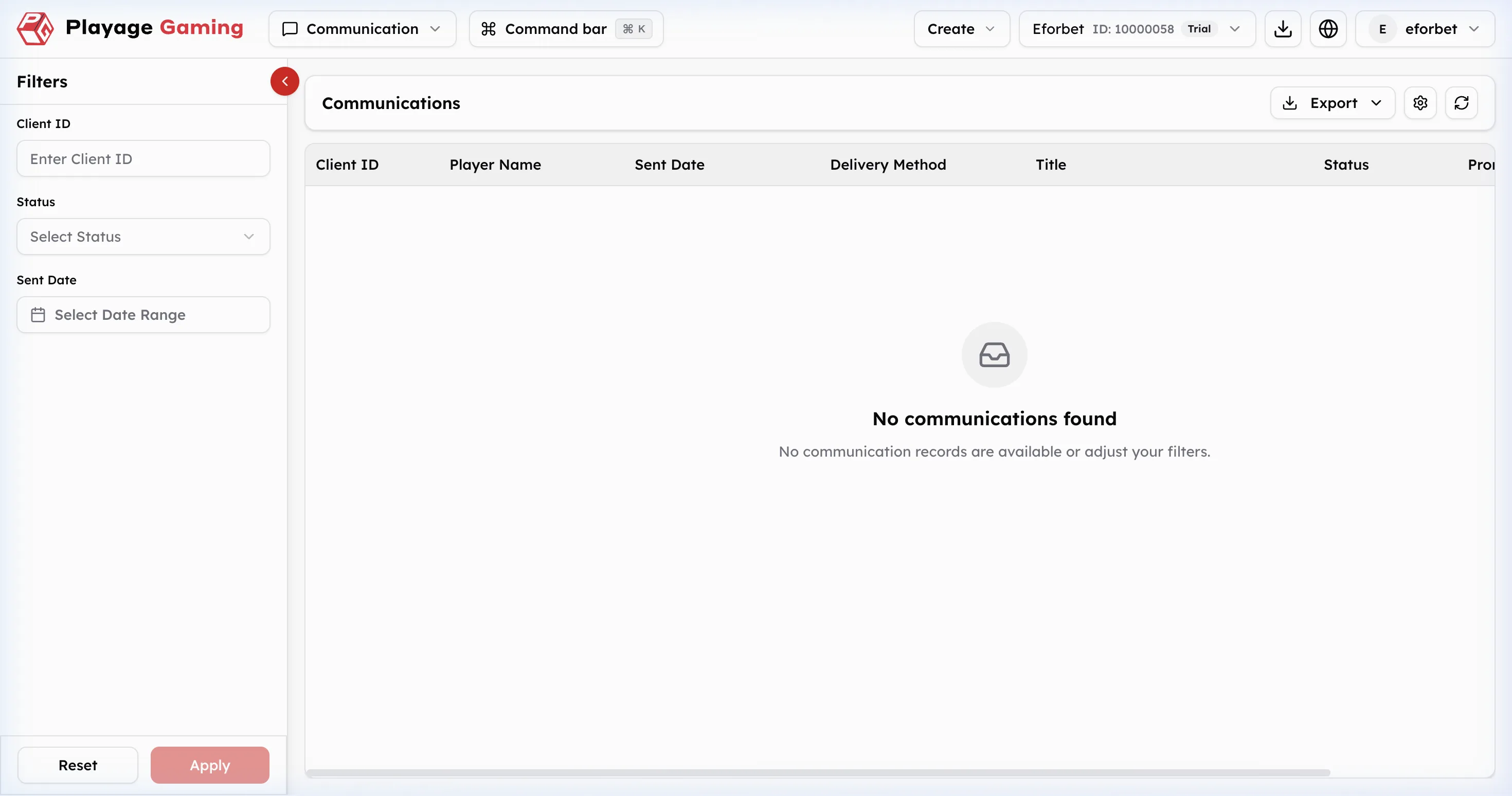
The Communication area is the log-style monitoring screen for sent and attempted CRM communications. It is primarily used for filtering, exporting, and troubleshooting delivery outcomes.
What You Manage Here
- Delivery history review
- Communication filtering by client, status, and date
- Export of communication records
- Empty-state validation when no records match the filter set
Communication Interface
Visible controls in the screenshot:
- Left filter sidebar
Exportdropdown- Settings and refresh icons
- Communication result table
- Empty-state message when no records are found
Filters
The visible filter sidebar includes:
Client IDStatusSent Date
Table Columns
| Column | Meaning |
|---|---|
| Client ID | Target client identifier |
| Player Name | Player name |
| Sent Date | Dispatch timestamp |
| Delivery Method | Channel used for delivery |
| Title | Communication title or template title |
| Status | Delivery state |
Step-by-Step: Investigate Communication Records
- Open
Communication. - Enter
Client IDif you are investigating one player. - Select
Statusif you want to isolate failures or completed deliveries. - Set
Sent Dateto narrow the time window. - Click
Apply. - Review the matching rows or the empty-state result.
- Use
Exportif the filtered result needs offline review.
Empty-State Behavior
The screenshot currently shows No communications found. This means either:
- there are no communication records in the selected scope, or
- the applied filters are too restrictive
Use Reset to clear filters and try again.